Email that gets opened
Why Do My Emails Go to Spam? 6 Plain-English Fixes
Why do my emails go to spam? The plain reasons your emails get filtered, the few fixes that matter, and the technical stuff you can safely ignore.
 By Tina Alexander
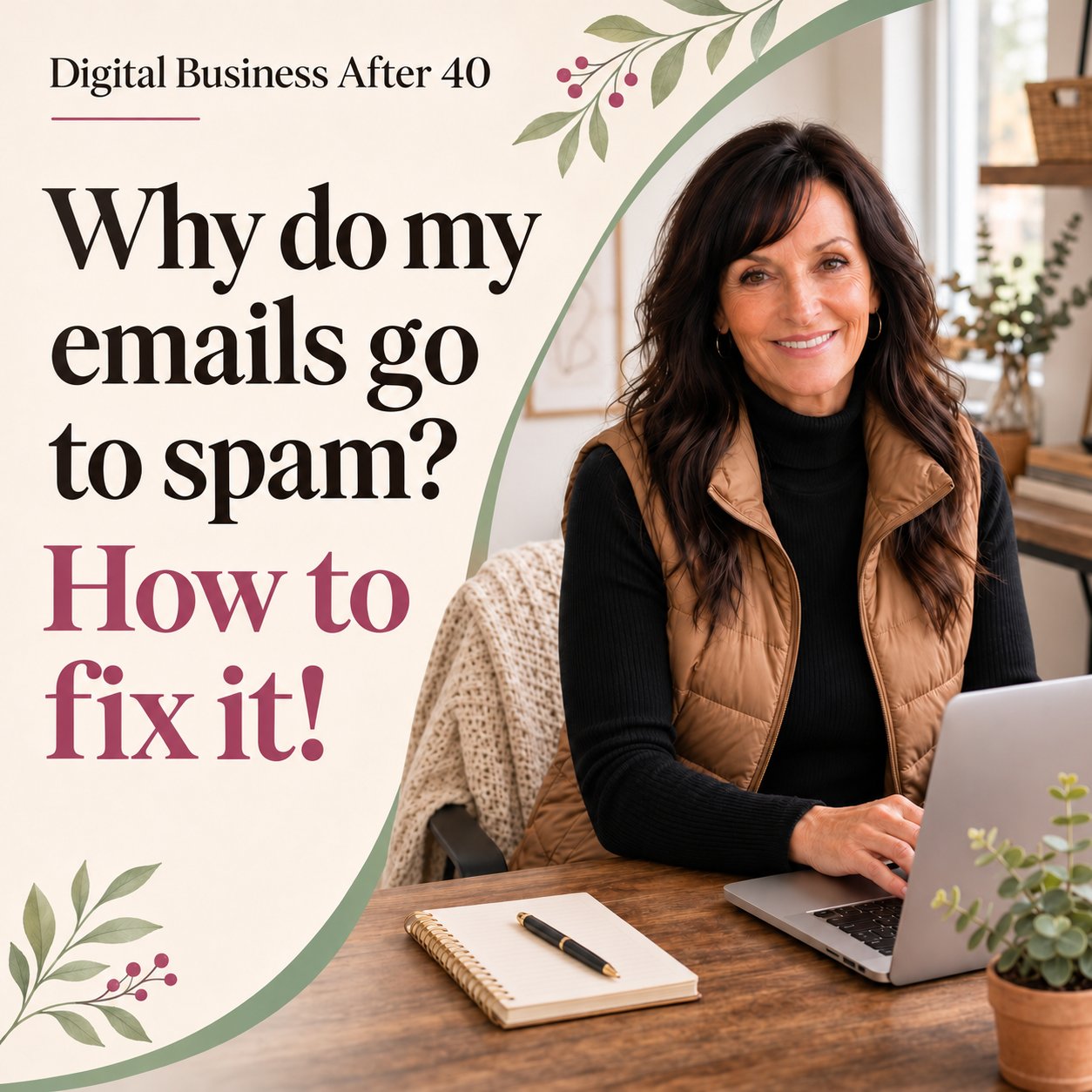
You finally did it. You wrote the email. You hit send.
And then nothing. No replies. Hardly any opens. A friend on your list says, “Oh, I never got it.” She checks. There it is, sitting in her spam folder like it did something wrong.
That stings. You were brave enough to show up, and the inbox didn’t even let you in the door.
Here’s the short answer. Your emails go to spam because email providers like Gmail, Yahoo and Outlook are guessing whether you’re trustworthy. They guess from two things: whether your sending address is properly verified, and how people react when your email lands. If your setup is missing a step, or readers ignore, delete or report your emails, the filters lean toward spam.
The good news? Both of those are fixable. And you don’t need to become a tech person to fix them.
You’ve been reading email since it came with a dial-up sound. You already know what a spammy email looks like. That instinct is most of the skill here.
Key Takeaways
- Spam filters judge two things: your sending setup and how readers respond to you.
- The spam folder and Gmail’s Promotions tab are different problems with different fixes.
- Verifying your sending address is the one setup step most beginners skip.
- Testing on a few real inboxes before you send to everyone catches most problems.
- You can ignore most of the acronyms and paid tools until your list is much bigger.
Why Do Emails Go to Spam in the First Place?
Think of a spam filter like a bouncer at the door. It doesn’t know you. So it checks two things.
First, your ID. Is this email really from who it says it’s from? Email providers check for a kind of digital signature on your sending address. Google’s own sender guidelines say every sender needs at least one of these verification methods in place (they’re called SPF and DKIM, and you don’t need to remember the names).
Second, your reputation. How do people react to you? Do they open your emails? Reply? Or do they hit “Report spam”?
That second one matters more than most people realize. Google tells senders to keep their spam complaint rate below 0.1% and to never reach 0.3%. In plain numbers, that’s about 1 complaint per 1,000 emails as the goal, and 3 per 1,000 as the line you never want to cross.
So if you have a small list and two people report you, that can add up fast.
My emails run through Beacons, and my product sales trigger an automatic email sequence. If those land in spam, someone who just bought from me never sees what they paid for. That’s why this topic matters to me, and why I wanted to lay it out simply for you.
Spam Folder or Promotions Tab? Not the Same Problem
Before you fix anything, figure out where your email is actually landing. These two get mixed up all the time.
The spam folder means the filter didn’t trust you. Your email was flagged as possibly unwanted. That’s the one to fix first.
The Promotions tab is a Gmail thing. Gmail sorts mail into tabs like Primary, Social and Promotions. If your email looks like marketing, it often goes to Promotions. It still got delivered. It’s just sitting in a different room.
Here’s how to tell which one you have. Send your email to a Gmail address you own. Then look in three places: Primary, Promotions and Spam.
- Found it in Spam? Work on your setup and habits below.
- Found it in Promotions? That’s normal for newsletters. Ask readers to drag your email into their Primary tab. Gmail will ask if they want to do that for future emails too. A friendly “reply and say hi” also helps, because replies tell Gmail you’re a real person they talk to.
Promotions is not failure. Plenty of people read their Promotions tab every day. Spam is the real problem.
The Setup Step Most Beginners Skip
This is the part that sounds scary. It isn’t.
When you send email through an email tool (Beacons, Kit, MailerLite, Flodesk, any of them), the tool is sending on your behalf. Email providers want proof that you gave it permission. That proof is called authenticating or verifying your sending address.
Most email tools have a section for this. Look in your settings for words like:
- Sender authentication
- Verify your domain
- Sending domain
- Email authentication
The tool will usually give you a few lines of text to copy into the place where you bought your website name. Then it checks for you and tells you when it’s done.
If you’ve never touched those settings, start there. Open your email tool’s help section and search “authenticate domain.” Follow their steps exactly. It’s mostly copy and paste.
If you get stuck, that’s okay. Take a screenshot of the screen and ask for help. You don’t have to figure this out alone.
Which Habits Actually Trip the Filters?
Your setup gets you in the door. Your habits keep you there. These are the ones I see trip people up most.
ALL CAPS SUBJECT LINES AND LOTS OF !!! Filters and people both read that as shouting. Write your subject line the way you’d text a friend.
An email that’s just a link. One line and a link looks like spam because a lot of spam looks exactly like that. Write a few real sentences first. Tell them why you’re sending it.
One giant image with no words. If your whole email is a single picture, filters can’t read it, and neither can someone with images turned off. Use real text, with an image as a bonus.
Emailing people who never signed up. This is the big one. Copying contacts from your phone, or a business card pile, onto your list feels harmless. But those people didn’t ask to hear from you. They’re the most likely to hit “Report spam.” Only email people who said yes.
Long silences. If you disappear for six months and then show up, people forget who you are. Forgotten senders get reported. If your list has gone quiet, read how to restart a cold email list before you send a big blast.
Hiding the unsubscribe link. It feels backwards, but an easy unsubscribe protects you. Someone who can’t find the way out will hit “Report spam” instead. Google now requires a one-click unsubscribe for people sending large volumes of marketing email, and every email tool includes one. Leave it in. Make it easy to find.
How Do You Test an Email Before Sending It to Everybody?
You don’t need a fancy tool. You need a few friends and your phone.
- Send a test to yourself. Every email tool has a “send test” button.
- Send it to two people on different providers. One on Gmail, one on Yahoo or Outlook, if you can. Different providers filter differently.
- Ask them one question: “Where did it land?” Primary, Promotions or Spam.
- Open it on your phone. Most people read email on their phone. Check that the words are big enough and the links work.
If it lands in spam for everyone, go back to the setup step. If it’s fine for some people and not others, look at your habits.
Before you hit send on the real thing, run your subject line, sender name and preview text through The Inbox Check. Those three are the first things a reader sees, and they decide whether your email gets opened or ignored.
What Can You Safely Ignore?
The internet loves to make email sound complicated. Here’s what you can leave alone for now.
The acronym soup. You’ll see SPF, DKIM, DMARC, BIMI and more. You don’t need to understand how they work. You need your email tool’s setup steps done. That’s it.
The strictest rules. Google, Yahoo and Microsoft have extra requirements for people sending thousands of emails a day. Google calls you a bulk sender at around 5,000 emails a day to Gmail addresses. Microsoft started enforcing its own rules for high-volume senders to Outlook addresses in May 2025. If you’re just starting out, you’re nowhere near that. Your email tool handles most of it anyway.
Spam word lists. You’ll find lists of “banned” words like free or bonus. Using the word free once won’t sink you. How people react to your emails matters far more than any single word.
Paid deliverability tools. There are tools that test and warm up your sending address. They’re built for companies sending huge volumes. You don’t need one yet.
Let that pressure go. You only need to get a few basics right.
6 Steps to Get Your Next Email Into the Inbox
1. Check where your emails are landing. Send one to your own Gmail and look in Primary, Promotions and Spam. Now you know which problem you’re solving.
2. Verify your sending address. Open your email tool’s settings and find the sender authentication section. Follow their steps. This is the fix that matters most.
3. Only email people who said yes. If anyone on your list didn’t sign up themselves, take them off. A smaller list of willing readers beats a bigger list of strangers.
4. Write like a person. A normal subject line. A few real sentences. One link, not ten. No all caps, no stack of exclamation points.
5. Ask for a reply. End with a simple question. “What’s the one thing about email that confuses you?” Replies are one of the strongest signs that you’re someone your readers actually want to hear from.
6. Test before you send to everyone. Yourself, two friends on different providers, and your phone. Every time.
If you’re still building your list from scratch, start with my guide on how to start an email list after 40. It walks you through the beginning, one step at a time.
Frequently Asked Questions
Why are my emails going to spam all of a sudden? A sudden change usually means something shifted. Maybe a few people reported your last email, you sent to an old or imported list, or you changed your sending address or email tool. Check your sender authentication settings first, then look at who you emailed recently and whether they all signed up.
Is landing in the Promotions tab the same as going to spam? No. The Promotions tab is a Gmail folder for marketing-style email, and your message was still delivered. Spam means the filter didn’t trust it. Many people read Promotions daily. You can ask readers to drag your email to Primary so Gmail learns where they want it.
Do I need to understand SPF and DKIM to fix this? No. Those are names for the verification that proves your email tool is allowed to send for you. Your email tool walks you through setting them up, usually by copying a few lines into your website name settings. You just need the steps done, not a technical understanding.
Can certain words send my email to spam? A single word rarely does it on its own. Spam filters look at the whole picture: your setup, your sending history, and how readers react. Shouting in all caps, piles of exclamation points and link-only emails cause more trouble than any one word like “free.”
How many spam complaints is too many? Google tells senders to keep complaints below 0.1%, which is about 1 complaint for every 1,000 emails, and never reach 0.3%. On a small list, even a couple of reports can push you over, which is why emailing only people who signed up matters so much.
You Belong in the Inbox
Remember that email sitting in your friend’s spam folder?
It wasn’t there because you’re bad at this. It wasn’t there because you started late. It was there because a filter didn’t have enough information to trust you yet.
Now you know how to give it that information. Verify your address. Email people who asked to hear from you. Write like the real person you are. Test before you send.
You don’t need to master every acronym or buy another tool. You need a few basics done right and the willingness to keep showing up in people’s inboxes with something worth reading.
You have more to say than most people sending email today. Make sure it gets delivered.
Come figure this out with us. Join the free Digital Business After 40 community, a supportive place for people over 40 who are building real things online. Ask your email questions there. Nobody will make you feel silly for asking.